/

HubSpot

How to Mark Tasks as Complete

How to Mark Tasks as Complete

How to Mark Tasks as Complete

This guide shows you how to mark tasks as complete in your HubSpot CRM using a simple text command. This is a quick way to update your to-do list and keep your deal records accurate without leaving your messaging app.

This guide shows you how to mark tasks as complete in your HubSpot CRM using a simple text command. This is a quick way to update your to-do list and keep your deal records accurate without leaving your messaging app.

George Levin

·

You will need one or more existing tasks associated with a deal.

  1. In your messaging app, type a command to complete your desired tasks. To update multiple tasks on a single deal, you can use a command like mark both tasks as done.
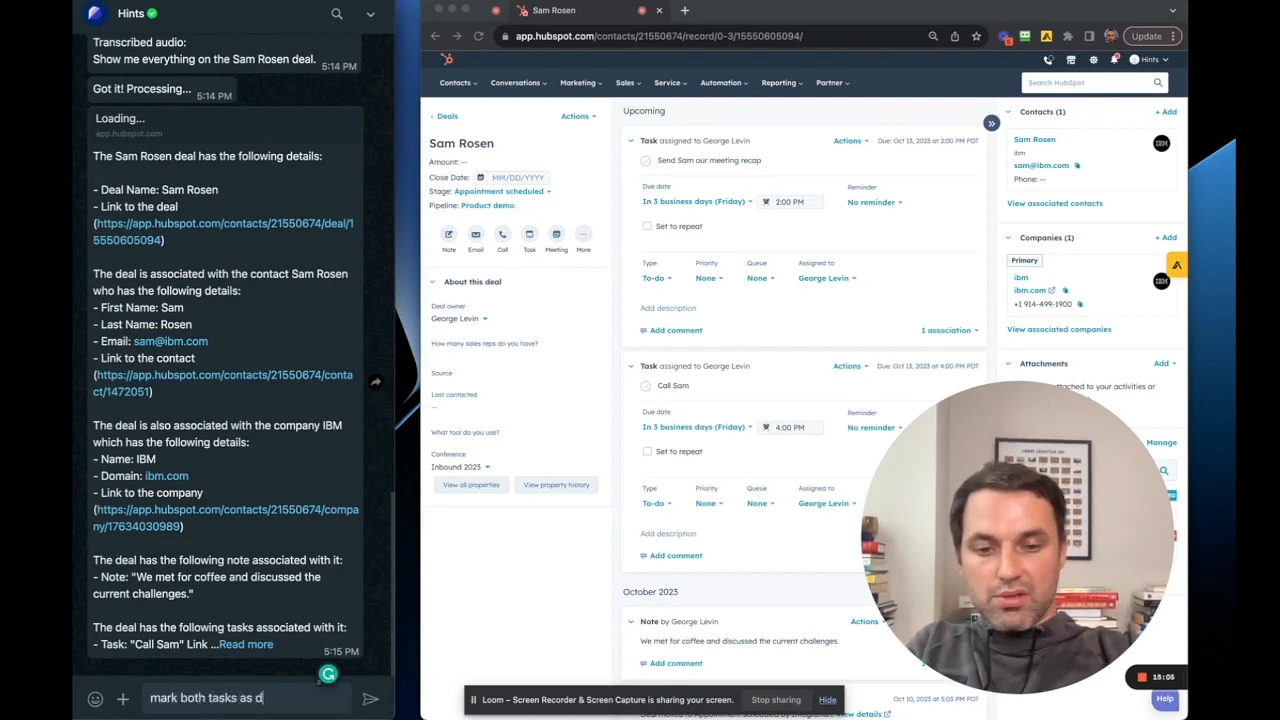

The command 'mark both tasks as done' typed into the message input field of a chat application.


  1. Send the message. The system will process your request and send a confirmation that the tasks have been updated to 'complete'.
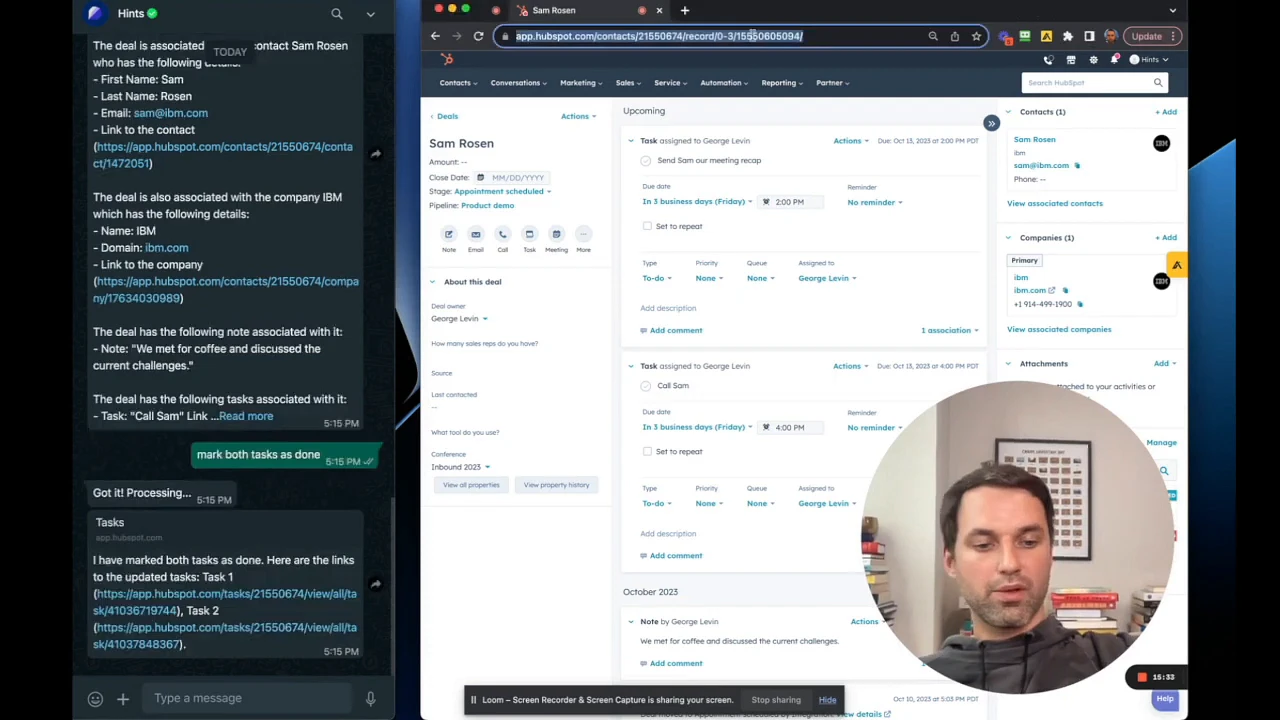

A confirmation message in the chat stating that two tasks are marked as done, with links to the updated tasks.


  1. Navigate to the deal in your CRM to verify the changes. The tasks you specified will now be marked as complete.


The deal's activity feed in the CRM, showing two tasks now marked as complete with strikethrough text.

Summary

Learn how to efficiently manage your workflow by marking multiple tasks as complete with a single text command. This feature helps you maintain an up-to-date record of your activities and ensures your deal pipeline reflects the most current progress, saving you time on manual updates.