/

Pipedrive

How to Update Records Using Conversational Context

How to Update Records Using Conversational Context

How to Update Records Using Conversational Context

This article will show you how to use the Hints AI assistant's conversational memory to update records in Pipedrive. This feature allows you to add information to a recently mentioned contact or deal without needing to specify the name again, making your updates faster and more natural.

This article will show you how to use the Hints AI assistant's conversational memory to update records in Pipedrive. This feature allows you to add information to a recently mentioned contact or deal without needing to specify the name again, making your updates faster and more natural.

George Levin

·

You will need an active Pipedrive account connected to your messaging app.

  1. In your messaging app, use a voice or text command to create a new contact. For example, "Create a new contact Michael Peterson."


Voice command in a messaging app to create a new contact named Michael Peterson.


  1. After the AI assistant confirms that the contact has been created, send a follow-up command with the new information. Use a pronoun like "his" or "her" instead of repeating the contact's name. For example, "His email is michael@honda.com."


Text command in a messaging app stating 'his email is michael@honda.com'.


  1. The AI assistant will understand the context and update the correct contact. You will see the new information, like the email address, added to the contact's record in Pipedrive.
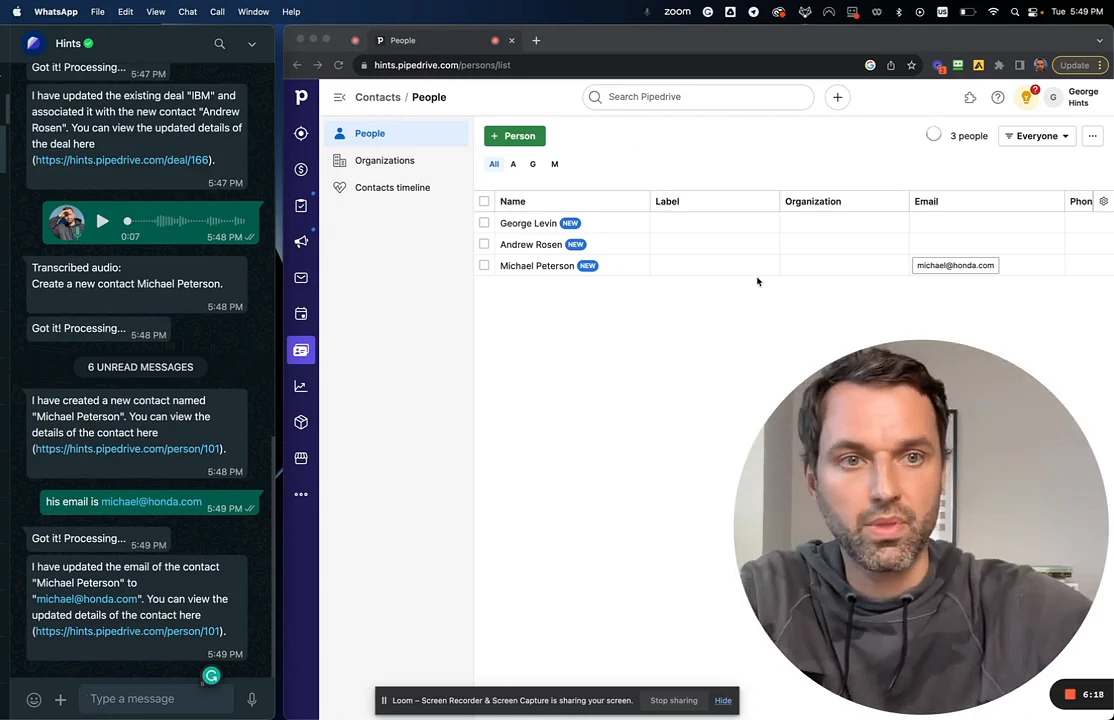

The Pipedrive interface showing the contact record for Michael Peterson, with the email field now populated with michael@honda.com.

Summary

Leverage the AI assistant's conversational memory to update CRM records efficiently. By understanding the context of your previous commands, the assistant allows you to add details to recently created or mentioned records using simple, natural follow-up messages, saving you the effort of restating names and titles.