George Levin
·
You will need an existing deal in your Pipedrive account.
Open your preferred messaging app, such as WhatsApp, that is connected to the AI assistant.
Record and send a voice message specifying the task and the target deal. For example, say "Send a task to the IBM deal. Follow up with the client."
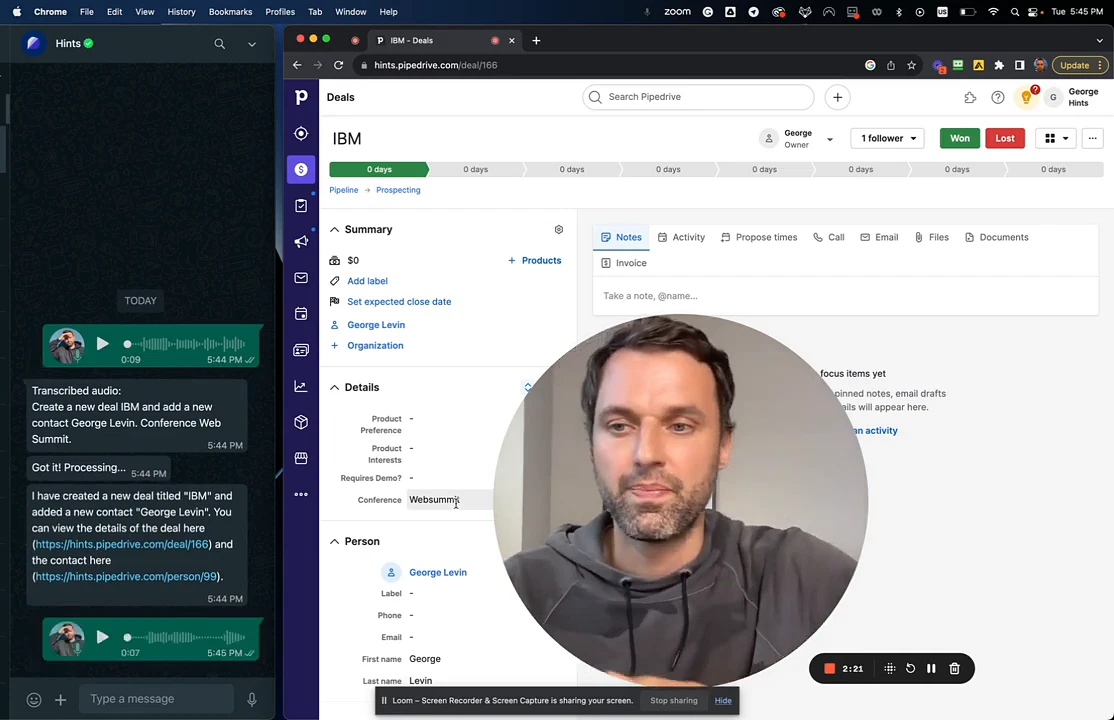
Wait for the AI assistant to process your command. It will send a confirmation message in the chat once the task has been created.
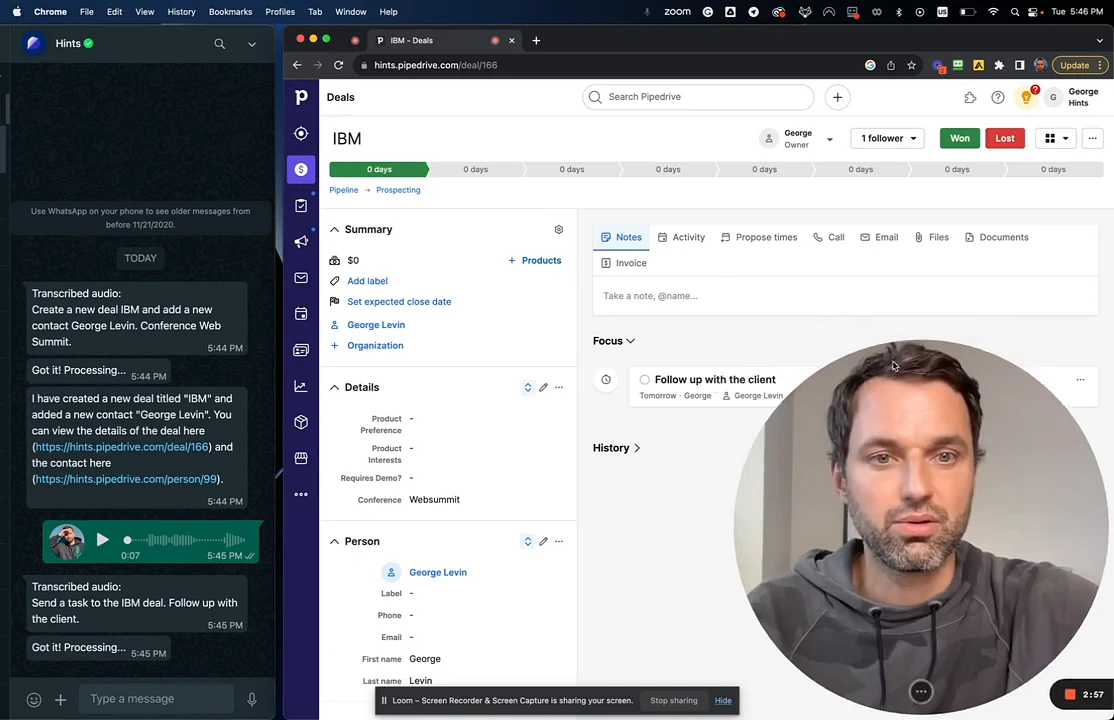
Navigate to the specified deal in Pipedrive. You will see the new task, "Follow up with the client," added under the Focus section.
Summary
This guide explains how to add tasks to your Pipedrive deals without ever leaving your messaging app. By using a quick voice command, you can create and assign follow-up activities, ensuring your deals are always updated and you never miss an action item. This functionality is perfect for staying productive while away from your desk.